Saturday, April 18, 2009

A teachers' Guide to Cloud Computing - Part 4

The steps to applying the Google Apps cloud computing model at a school district
Since Google is offering an Education edition for schools for free, there are currently few other options that can compete. As technology moves forward, I'm sure this will not always be thecase. But for the timing of this paper and blog posting, early 2009, Google is the major player. Here are the steps that I've taken to bring Google Documents to my School District.

1. Apply for an educational Account at Google. You need to prove that you are an education institution to receive benefits from Google. Advertisement will be turned off on all pages for educational organizations. Google will also provide 500 free accounts for use with Google Docs. If you district needs more than 500 accounts, they can be purchased.

To apply for the account, you need to start at Google's website:
http://www.google.com/educators/p_apps.html

You will need a web address for your school. Google will be using that web address for
the name of your google domain. My school district was currently using Greenport.k12.ny.us to point to a web server that held the district’s website. The address was also used to point to a
Microsoft Exchange server where district e-mail was sent. Both of these services were housed in the school district and supported by district staff.

When you create a google document account, you also create e-mail accounts. Google has married the services together and google docs is no available without email. I did not want to disrupt the services that we already had running at the district, so I registered a second domain to use with our new google system. Gufsd.org (Greenport Union Free School District) was registed for $10 per year. Domain name registration has become a very cost effective thing to do.
We pointed the domain name to the google services. Google has many pages of instructions to help you do that.

After the account is set up with Google, you will need to create accounts for your students and staff. I downloaded names from my student information system and created a spreadsheet. I had to provide the first and last name, desired e-mail account, and initial password. Once this
was completed, the file was uploaded to google and all the accounts were created at once. Here is a sample of what the file looks like:
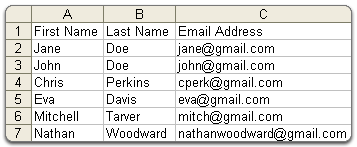
If you don't provide initial passwords, google will assign them.

You can read more about creating accounts at google’s website here:
Http://mail.google.com/support/vin/answer.py?hl=en&answer=12119

Once the accounts are created, you need to train your students and staff. My district held a “google Documents training session as part of staff development day. The teachers were shown how to log in and use their accounts. They were provided with the account lists and passwords of their students, so they could show their students how to access their accounts.

Changing the climate at a district can be difficult. At my September 30th, 2008 staff training day, I trained 35 teachers on the use of Google Apps. Teachers were given their accounts, lesson plan ideas and a day of training on how it works. Student accounts were set up for each student in grades 7 – 12. Since Microsoft word licenses exist for most machines in the district, teachers had no incentive to switch over. As of this writing in April 2009, students are still doing their work in the traditional way using the Microsoft office that is installed on each PC.
In the teacher training session, there was a bit of confusion as to how the system worked. Teachers understood how to create new documents, change fonts, spell check and traditional word-processing tasks with no problems. But when it came to learning the collaboration tools,things didn’t go as smoothly. Collaboration tools are not available in traditional word processing documents. To work together on a document, it had to physically be place in a file on a floppy disk or flash drive. The document had to be transferred from one student to another so the student could add their part of the document. This type of document sharing was called “sneaker net” as you had to walk the document from one person to another.

I had one group of four teachers who set up a collaborative document. They were each viewing it on their screens simultaneously. For the training each teacher had their own laptop computer, and were logged into their own google account. Once teacher would make a change to the
common-shared document and then say to the other “did you get the message yet”, like they were using a sort of on-line chat room. I explained that they were editing one document. When one teacher would edit anothers words, it surprised them that the changes showed on all screens, not just theirs. I left the training thinking that they didn’t quite “get it”.
Once you’ve rolled out the accounts to staff, it is important to keep training.
I have pushed into several classrooms to teach the students how to use their google docs accounts. Students have taken to the technology is a very rapid way. Once they discover they can work on their documents at home, they are interested.
Google points out on their website how Google Documents can benefit schools. The google website says:

"Students, teachers and staff can share ideas more quickly and get things done more effectively when they have access to the same powerful communication and sharing
tools. Google Apps Education Edition lets tech administrators provide email, sharable online calendars, instant messaging tools and even a dedicated website to faculty, students and staff for free. There's no hardware or software to install or maintain, since everything is delivered through a standard web browser -- anytime,
from anyplace."
The bulk of what students use google docs for will be document processing. The computers that are provided for Student Use at my district are used mainly for internet research and document processing. Students use a set of tools when they use word processing software. I was concerned
that student would feel they are losing options and functions when their switch from a full-functioning wordprocessing program like Microsoft Office to a web-based program like Google Docs.
There are fewer menu options available in Google docs then there is in Microsoft Office.
However, I feel the set of tools that Google document provides to the students is adequate.
To test my belief that google docs tool set is adequate, I surveyed students and teachers to see what features of a WordProcessing program they use. I listed several WordProcessing features and asked whether or not students use them. There is a belief that people only use a small percentage of the features that their software applications provide. My finding bear that out.
The chart below detail what features students use. It is clear that Google Documents (the online model) provides all the tools needed to produce student work.


Feature


Percentage of Survey responders who use
this feature


Provided by Google Docs


Provided by Microsoft Word

Spell Check86.8%YesYes

Printing


86.8%


Yes


Yes


Change Font


78.9%


Yes


Yes


Insert Footnote


13.2%


Yes


Yes


Insert Image


52.6%


Yes


Yes


Insert table


23.7%


Yes


Yes


Insert Headers


39.5%


Yes


Yes


Insert Footers


13.2%


Yes


Yes


Create a Table of Contents


18.4%


Yes


Yes


Text Search and Replace


21.1%


Yes


Yes


Add Watermark


2.6%


No


Yes


Use Multiple Columns


26.3%


No


Yes


Alphabetize (sort) columns of Words


18.4%


No


Yes


Mail Merge


13.2%


No


Yes


As you can see from the table above, the features provided by Google Docs are adequate for most users in a K – 12 environment.
I also asked students if they work on document from multiple locations. An overwhelming amount, 74.3% do. But asked if they collaborate on document creation, a majority (60%) said they produce documents without the help of others.
My informal survey was facilitated by the website SurveyMonkey. If you wish to take
the survey, it is still online here:
Click Here to take survey
I have stopped analyzing responses, but withe the link above, you can see how the survey was taken.
The question on the survey about multiple document authors ties in with the trend in
education toward collaborative project based learning. In my next section of this paper, I will explore the benefits of cloud computing that are not available with the old model.

A teacher's Guide to Cloud Computing - part3

Part 3 - Using Cloud computing to benefit K - 12

According to InformationWeek. "Cloud computing promises to cut operational and capital costs, and more important, let IT departments focus on strategic projects instead of keeping the data center running."

In K-12 Schools, the benefits of cloud computing can greatly enhance the way student create documents and store their work. Let's look at six potential benefits for schools when the adopting this cloud computing model.
  1. Reduced Costs. Since schools do not have to maintain the computers and programs in-house, the costs are lower. Software licensing fees do not have to be paid. Staffing for server maintenance, backups can be reduced.
  2. Increased Storage. Schools have to limit the storage that students can access on the school servers. There is a finite amount of space on school-based file servers. With cloud computing, more space is readily available.
  3. Highly Automated. Schools must constantly update software to keep pace with changes. Older versions of software that is installed on the school computers has to be updated to newer programs. Using an Internet-based, server the updating is done automatically. School personnel area no longer responsible for keeping software current. With the "Software stored on Local PC model", when a program enhancement comes out, the school is responsible for purchaing the upgrade, and then installing it on each computer. With the applications stored on a cloud server, this software updating is done automatically for the school

  4. Flexibility. If the school wants to change the programs they are using, they can just sign-up with another service. They don't have to re-invest in new software and install it.

  5. More Mobility. Students and staff can work on their document from anywhere there is an internet connection.

  6. IT can shift focus. IT staff doesn't have to spend resources keeping server running.

So if this technology has all these benefits, how can we apply them to Schools?

Since Cloud computing is Internet based, you need to use a service provided by a third party. More and more companies are jumping into cloud computing, but there are still limited
options for schools. The most obvious place to start cloud computing in your school is with document creation and management.
There are two major companies providing “online document” services, Google and Zoho. As cloud computing becomes more prevalent, I’m sure this number will grow.
Google has gone out of their way to woo the Educational customer. They have provided a free google Document account for any school. The Google documents accounts comes with 500 free accounts for schools to give to their students and staff. Google turns off advertising for these school accounts.
Zoho also provides free accounts, but only for personal use. To create a group of accounts, you must purchase a plan. There have a discount for schools, but even with accounts as low as $5 per month, they can’t compete with the free model that Google offers.
So, the cloud computing model that I am exploring is with Google Apps (Applications). This platform is sponsored by Google and is being offered to Educational Institutions at no cost.
Since the platform is free, it can be set up at any school district without incurring a lot of expense. School can evaluate how the platform works without inventing any money. Google has put together a very good set of tools: e-mail, calendar, Web messaging, word processing, spreadsheets, and slideshow presentations. These applications take the place of Microsoft
Office which costs $350 per user for a corporate license and $49 per user for an educational license. Also, there's no need to back-up or transfer files from multiple computers.

There are other benefits to using Google docs that we haven’t explored yet. Google docs does allow students to store their work in the “clouds”, but there are other benefits as well.
Google points them out on their website:
  • Documents are stored online. School do not have to invest in servers with large storage capacity to store student documents.
  • Students can collaborate in real-time. Documents can be shared and edited between students.
  • Access to the documents is controlled.
  • Existing documents can be uploaded into the new Google Docs accounts.
  • Each document has a revision history
  • It is integrated with e-mail.
The fact that student can collaborate in real-time is something that was not available in the old, "everything installed on the PC"model. Now a group of students can all be editing the same document, from different locations. If a group of students has to do a group project, they can access the files from home and contribute from there, as long as they have an internet connection.

My school district, Greenport Schools, set up a google documents account. In the next section we’ll look at the process.


A teacher's Guide to Cloud Computing - part2

Part 2 - Cloud Computing Explained

Cloud computing is Internet based use of computer technology. The word cloud is used as a metaphor for the Internet. Cloud computing is also synonymous with the phrase "Software as a Service (SaaS)". With cloud computing you are using the technology without knowledge or control over the infrastructure. You don't purchase software, but instead use a service that is installed on a server computer.

To explain cloud computing using another example, we'll go back many years. When electricity was first invented, companies had to generate their own electricity. When utility companies and municipal electric service came into existence, companies now could tap into the electric that was provided and not generate their own. All they have to provide is a way to tap into this shared electric service.

Cloud computer treats computer applications and documents that same as this electric model. Companies (or schools) don't have to provide their own computer applications or places to store them. They can tap into the document storage and applications of the Internet. All they have to provide is the means to tap into the service.
Cloud computing is an emerging technology where data -- documents, messages, photographs, computer programs (word processing and spreadsheets) are stored out in the Internet and not on an individual's computer. Cloud computing simply needs an internet connection to work. If you have to install new hardware or new software then it isn’t cloud computing.
Ray Ozzie, chief software architect at Microsoft, is quoted as saying "We're going to look back at this era and wonder how we did without this other kind of computer in the clouds". (J.
Nicholas Hoover,
A Stake in The Cloud (Informationweek, 2008) 22. )
He is working to revamp the architecture of programs at Microsoft to take advantage of cloud computing technology. Windows and office, two of Microsoft's most important programs, will change to take advantage of cloud computing. According to Information week: "the next version of Office will offer a browser-based option
so users can read and edit documents online as well as the ability for users to collaborate using Web, mobile and client version of office."
Michael Nelson, a professor at Georgetown University is quoted assaying, "Cloud computing is going to change the way we do computing and not in 10 years... but in 4 or 5. " ("Google D.C. Talks:
Cloud Computing." Google Video. Online video clip. Youtube.com
Accessed on 04 November . http://www.youtube.com/watch?v=XVb41AVL05k
)
The Pew Research Center published a Data Memo in September 2008. In the memo they cite the following statistics:

CLOUD COMPUTING ACTIVITIES
Internet users who do the following online activities (%)


Use Webmail Services such as Hotmail, gmail, or Yahoo! mail


56%

Store personal photos online

34%


Use online applications such as Google Documents or Adobe Photoshop Express


29%


Store personal videos online


7%


Pay to store computer files online


5%


Back up hard drive to an online site


5%


So cloud computing is coming... next we'll explore how it can benefit K-12 Institutions.

A Teacher's Guild to Cloud Computing - Part1

Every year there is a new buzz word.   In technology it seems to be every month, there is something new for a teacher to keep up with. If students are doing it, teachers should know about it. 
The latest buzz in technology is cloud computing. Just what is cloud computing? Can students use the technology to help in their education? What do teachers need to know. 
This teacher’s guide to cloud computing is my attempt to answer some of those questions. If you read all the information in the guide and follow some of the exercises, you’ll see how to tap into cloud computing and use it in your classroom. 

A look back on Computers in the Classroom:


Since Personal computers have found their way into schools, the same model for
student computer use has applied:
  1. A computer is placed in the classroom.
  2. Software programs are loaded on the computer
  3. The student types their work into the program on the computer.
  4. A file is created and the work is stored on a locally, either on a hard
    drive, floppy or flash drive.
There are several problems with this system:
First, Students can and do lose their files.   If the student is working on a different computer than yesterday, the work may be on the hard drive of yesterday’s computer. If the student stored their work on a removable storage devise (Floppy, flash drive) they can lose it.
Secondly, the files can be in the wrong format. Students bring work in from home, but their file may be saved in WordPerfect format and the classroom has Microsoft Word. Or the student works on an Apple computer at home.  The file is too difficult for the teacher to open. 
The software industry is constantly changing. They have to come out with upgrades
and new features to keep people buying their product. Each program stores their files in their own format. If a student work in Microsoft Works as home, but at school there is Microsoft Office.  Office can’t open works files. Or student are using the latest at home – Office 2007, but at school there is still Office 2000, which can’t open the newer files. The technical incompatibilities can sidetrack even the most diligent student.
This is where “cloud computing” comes into play. Instead of storing the work locally, student work goes into the “clouds”.   Programs are not stored on the local computers.  The programs
are on the Internet (up in the clouds).  Students simply need to access the Internet to run their programs and access their files.

So Cloud computing can change the way school store student work. Before we explore
cloud computing further, let’s see how we got to where we are today with computers in the classroom.

Models of computer use at schools


The personal computer got started in 1980 with the IBM PC.  School quickly adopted computers for use in education, utilizing Apple II computers.  One of the first uses of computers in education was word-processing.  This is how word-processing on a computer is done in a school: 

  1. A software  program is loaded on the computer
  2. The student types their work into the program
  3. A file is created and the work is stored on a local storage device (hard
    drive, floppy disk, flash drive).


Students at home have no access to the files or applications at school.  The work is stored on the computers. In the last few years, cheap flash drives have made carrying files back and forth easier. The work is stored on the drive and can be carried from machine to machine or
home. If the flash drive is lost, or if the student leaves it home, the work is not available.

The cloud computing model is different.  Student still sit at the computer to do their word processing, but the programs are not installed on the local machine.  Student work is stored in "the cloud" of the Internet.  This model allows students to get access to their work anywhere there is an internet connection.


Students at school save their work into the Internet based applications.   Students at home can also gain access to the document.  Since the work is not housed in the school district's computer network, the documents are available from anywhere with an Internet connection. 

Now that we've seen how our student can use cloud computing, in the next blog post, we'll dig deeper in just what cloud computing is.


Sunday, March 15, 2009

Asset Technology Conference

Tomorrow is the Asset technology conference on Long Island. I'm presenting "Cloud Computing for the K-12 teacher.


Here is my presentation. I'm presenting session one, so I don't have to worry about it all day. The presentation is a Google Docs presentation. I've embedded it here in my blog, but in the presentation is an embedded video. Amazingly, it all works.

I'll let you know how it goes.

Wednesday, November 12, 2008

WordProcessing Survery

I'm collecting data for my thesis. Please fill out my quick survey on Word Processing features and software!

Click Here to take survey

Thanks,

Kim

Friday, November 7, 2008

Who coined the phrase Web 2.0

If you've been reading my blog, you know that I'm working on my Master's Thesis. Since it involves Web 2.0 technologies, I thought I'd include a section on the history of Web 2.0.

I've found differing options on the origin of Web 2.0. In the book "Blogs, Wikis, MySpace, and more: Everthing you want to know about using web 2.0 but are afraid to ask". by Terry Burrows, I found the following:

"The concept of Web 2.0 came from an Internet media businessman names Tim O'Reily. He and his colleagues coined the phrase in 2003, and it became public at the first Web 2.0 conference a year later."


In "How to do Everything with Your Web 2.0 Blog" by Todd Stauffer, it says:

"The term "Web 2.0" was coined by Dale Dougherty in a brainstorming session with book publisher Tim O'Reilly at a conference in late 2005, and while it wasn't perfectly well-defined at the time, it was meant to suggest the next generation of Web applications that were turning the Web froma sort of static experience into a more acitve -- maybe "useful -- one. "

So when was the term coined? 2003? 2005? I guess it is time to google....